Taskbar app
roster-tray puts your fleet one click away: a system-tray icon plus a compact window
that lists every server with its check and task result, and opens a terminal or
the remote-control viewer per row.
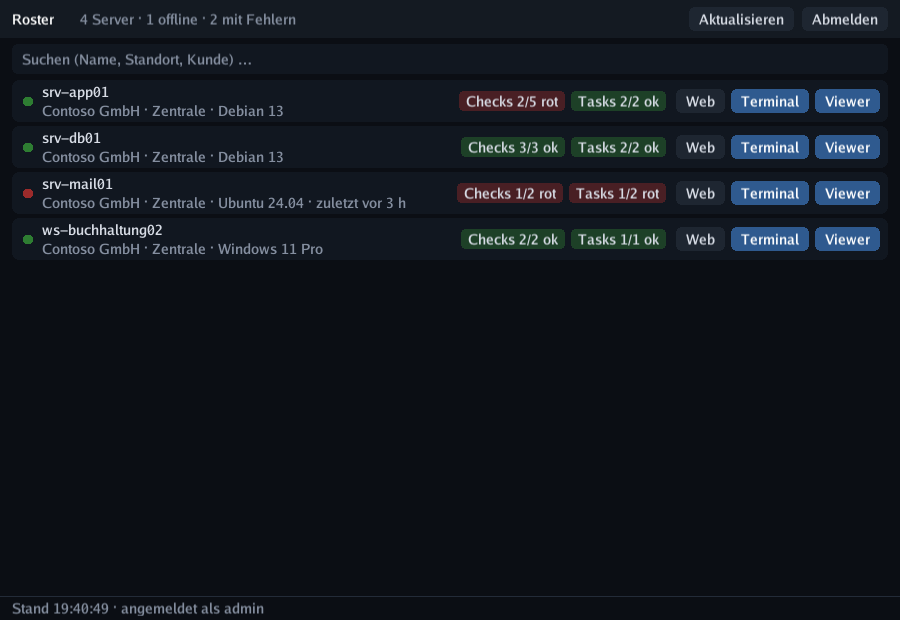
Like the viewer, it is a cgo-free Go binary that renders with SDL3 through purego — no runtime to install, cross-builds for Linux/Windows/macOS without a toolchain.
What it shows
- Status dot per device — online, offline, or unmanaged.
- Checks badge — green
Checks 4/4 ok, redChecks 1/4 rotas soon as one fails. - Tasks badge — same idea, based on the last run of every task.
- Company / site / OS, and how long an offline device has been quiet.
- Temperature badge — the hottest CPU in neutral grey; if any sensor is in its warning
or critical range, that sensor instead, in amber or red (e.g.
NVMe 86 °C). A red fan badge appears only when a fan stops, raises an alarm or runs too slow. - The tray icon itself turns red when anything fails and amber when a device drops offline, with a summary in the tooltip — so a glance at the taskbar is enough.
Device details
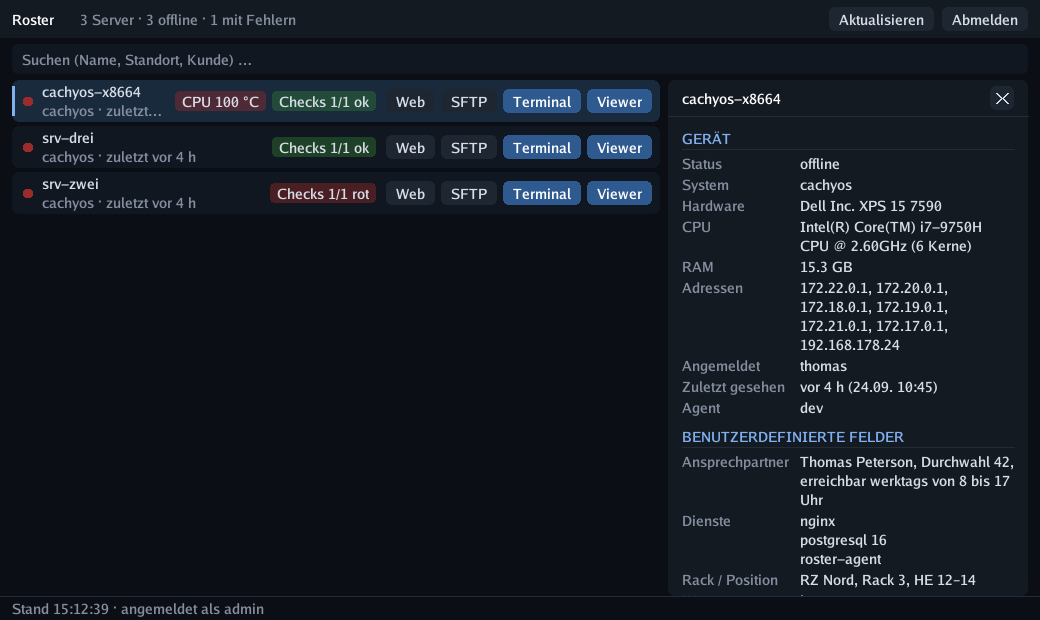
A click on a row opens a panel next to the list with everything you would otherwise
open the web UI for: system, hardware, addresses, logged-in users, last contact, tags —
and, first and foremost, the device's custom fields (lists and checkboxes rendered
readably), followed by the current check results, disks and notes. The panel refreshes
with every list poll; Esc or the ✕ closes it, a second click on the same row too.
Proxmox hosts can be expanded to show their VMs and containers with backup badge and start/stop buttons — see Proxmox VE.
Type anywhere to filter by name, site, company or OS, by VMID / guest name, and by the
values of the device's custom fields (an AnyDesk ID, a tag in a list field, …);
F5 (or the tray menu) refreshes, and the list polls on its own every 30 s (refresh_sec).
Terminal and viewer buttons
| Button | What happens |
|---|---|
| Terminal | Opens your normal terminal emulator (kitty, foot, alacritty, GNOME Terminal, Konsole, Windows Terminal …) running roster-tray --term <device>, which pipes stdin/stdout through the same on-demand terminal tunnel the web UI uses. You keep scrollback, copy & paste and colours — the app ships no terminal emulator of its own. |
| Viewer | Requests a remote-control session and launches the native roster-viewer with the ready-made launch code — the same path as the browser's Open in viewer button, but without the detour. |
| Neustart | Queues a reboot of the device — click, then confirm with the red Sicher? within four seconds, like the Proxmox guest buttons. |
| SFTP | Hands sftp://user@host/ to your desktop's registered program (Nautilus/Dolphin mount it via GVFS/KIO), or falls back to the first installed client it finds — FileZilla, Dolphin, Nautilus, Nemo, Thunar, Krusader, Konqueror, gftp; WinSCP on Windows. |
| Web | Opens the device page in your browser (double-clicking the row does the same). |
SFTP goes straight to the device, not through the tunnel
Terminal and Viewer are relayed by the Roster server, so they reach a device behind NAT
or a firewall. SFTP does not: it is a plain SSH connection from your workstation, so
the device needs an SSH server and has to be reachable from where you sit. The button
only appears when Roster knows an address for the device — the first real IPv4 from the
inventory (loopback, link-local and docker*/br-*/veth*/virbr* interfaces are
skipped), otherwise the hostname, otherwise the public IP. Devices found by the network
scan get the button too, even without an agent.
Set the login name with sftp_user; force a specific program with sftp_command, which
takes the placeholders {{host}}, {{user}}, {{url}} and {{name}}:
Sign-in
You sign in once with username, password and (if enabled) the two-factor code. The app
then creates a user API token for itself and stores it in tray.json — the session
itself is dropped, so you are not thrown out after 12 hours. Sign out in the tray menu
revokes the token on the server.
~/.config/roster/tray.json        # Linux/BSD (0600)
~/Library/Application Support/…   # macOS
%AppData%\roster\tray.json        # Windows
| Key | Meaning |
|---|---|
url, user, token |
Server and stored access (written at sign-in) |
insecure |
Skip TLS verification — only for self-signed test servers |
refresh_sec |
Poll interval for the device list (default 30) |
terminal |
Force a terminal emulator instead of auto-detection |
viewer_path |
Path to roster-viewer if it is not next to the binary or on PATH |
shell |
Default shell for the remote terminal (shell, bash, cmd, powershell) |
sftp_user |
Login name for the SFTP button (empty = none) |
sftp_command |
Program for the SFTP button instead of the desktop handler; placeholders {{host}} {{user}} {{url}} {{name}} {{key}} |
sftp_key |
Private key for the SFTP button. A sftp:// URL cannot carry a key, so with a key set the button opens sftp -i <key> user@host in your terminal (Windows: WinSCP with /privatekey=), or your sftp_command with {{key}}. File managers only take keys via ~/.ssh/config. |
theme |
dark (default) or light |
ui_scale |
Fixed UI scale (0 / absent = auto-detect). Ctrl + / Ctrl - change it live and save it, Ctrl 0 returns to auto |
Download
Settings → Downloads in the web UI offers ready-built packages straight from your server — the same way the remote-control viewer is shipped:
| Platform | Package | After downloading |
|---|---|---|
| Linux x86-64 / ARM64 | roster-tray |
chmod +x roster-tray && ./roster-tray --install --autostart — SDL3 comes from your distribution |
| Windows x86-64 | roster-tray-windows.zip |
unzip, then roster-tray.exe --install --autostart in a terminal (copies exe + SDL3.dll to %LOCALAPPDATA%\Programs\Roster) |
| macOS (Apple Silicon) | roster-tray-macos.zip |
attached to the GitHub release only (building it needs a Mac); unzip, keep libSDL3.dylib next to the binary — no --install yet |
The download is public (/api/v1/tray/<os>-<arch>) — the binary holds no secrets; you sign
in on first start and the app keeps only its own API token. Which platforms appear depends
on what was built into the server (make tray-embed, tray-embed-arm64,
tray-embed-windows, tray-embed-darwin); the release workflow builds all of them.
Settings
Einstellungen in the header opens an in-app settings page for the things you would
otherwise edit in tray.json: appearance (dark / light — applied live as a preview,
saved with Speichern), the SFTP user, the SSH key for SFTP (every private key found
in ~/.ssh is offered as a button; keiner leaves it to your agent / default key) and an
optional SFTP program. Esc discards, Enter saves.
Application launcher
--install puts everything where the desktop expects it — no root, no packaging, no
source tree. It copies the binary you run it from, so it works straight from the download:
./roster-tray --install                    # ~/.local/bin + application-menu entry + icon
./roster-tray --install --autostart        # additionally start into the tray at login
./roster-tray --install --prefix /usr/local # system-wide (run as root)
roster-tray --uninstall                    # remove it again (same --prefix)
make install-tray, make install-tray-autostart and make uninstall-tray are thin
wrappers around the same flags for a source checkout.
On Linux it installs:
| File | Purpose |
|---|---|
$PREFIX/bin/roster-tray |
the binary (the .desktop gets this absolute path) |
$PREFIX/share/applications/de.boonkerz.roster.tray.desktop |
the launcher entry |
$PREFIX/share/icons/hicolor/256x256/apps/de.boonkerz.roster.tray.png |
the icon (the app renders its own) |
~/.config/autostart/de.boonkerz.roster.tray.desktop |
only with --autostart: starts roster-tray --hidden at login |
On Windows: %LOCALAPPDATA%\Programs\Roster\roster-tray.exe + SDL3.dll + .ico, a
Start menu shortcut „Roster“ and, with --autostart, the same shortcut in the Startup
folder. The viewer's --install uses the same folder, so both share one SDL3.dll.
The app sets its application ID (de.boonkerz.roster.tray) as the Wayland app_id /
X11 WM_CLASS, matching the .desktop file name and its StartupWMClass. That is what
makes the panel show the right name and icon for the window instead of a generic one.
Starting it a second time from the menu does not create a second tray icon: the new
process hands the request to the running one over a socket in $XDG_RUNTIME_DIR, which
then brings its window to the front.
If the entry does not show up right away, the desktop is still holding a cached menu —
update-desktop-database ~/.local/share/applications (the installer runs it) or a
re-login refreshes it. ~/.local/share/applications must be covered by XDG_DATA_DIRS,
which is the default on every desktop.
Running it
make tray                 # builds bin/roster-tray
bin/roster-tray           # window + tray icon
bin/roster-tray --hidden  # start into the tray only (autostart)
bin/roster-tray --selftest # check SDL3, window and tray support on this desktop
bin/roster-tray --screenshot shot.png --select srv01  # render one frame (with the details panel) for docs
| Key | Action |
|---|---|
| click a row | open / close the details panel · double-click opens the device in the web UI |
| type anything | filter the list · Esc closes the panel, then clears the filter, then hides to the tray |
F5 / Ctrl R |
refresh now |
Ctrl + / Ctrl - / Ctrl 0 |
UI scale up / down / auto |
Ctrl Q |
quit |
Closing the window hides it into the tray; Quit in the tray menu ends the app. Without tray support the window simply stays open, and closing it quits.
HiDPI
The app draws into the full pixel buffer and scales fonts and spacing by the display
scale, so it stays sharp on 4K screens. On a Wayland session it asks SDL for the
Wayland driver on purpose: through XWayland the x11 driver reports no scale while the
compositor still hands out physical pixels — which is exactly how a 4K window ends up
looking 1.75× too small. Set SDL_VIDEODRIVER yourself to override that choice.
If the scale still cannot be detected (plain X11, no Xft.dpi), zoom with Ctrl + /
Ctrl - — the value is stored as ui_scale and reused on the next start; Ctrl 0
switches back to auto-detection. roster-tray --selftest prints the video driver and every
scale value SDL reports, which usually explains the size in one line.
Linux desktops
The tray icon uses SDL3's SDL_Tray, which talks to the StatusNotifier/AppIndicator
service of your panel (waybar, GNOME with the AppIndicator extension, KDE, XFCE …).
--selftest tells you in one line whether SDL3 on this machine brings tray support and
whether the menu callbacks arrive.
For autostart on Linux, drop a .desktop file into ~/.config/autostart/: